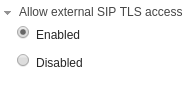
First of all, you have to do these port forwards towards the PBX:
In the NAT Settings section, clic on Detect Network Settings.
After few seconds, the system will fill in all the fields (if not, you'll have to fill in manually).
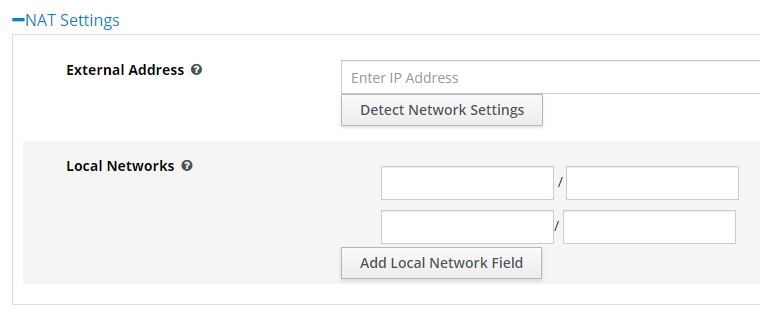
After that, go to Settings -> Asterisk SIP Settings -> tab Chan PJSIP Settings.
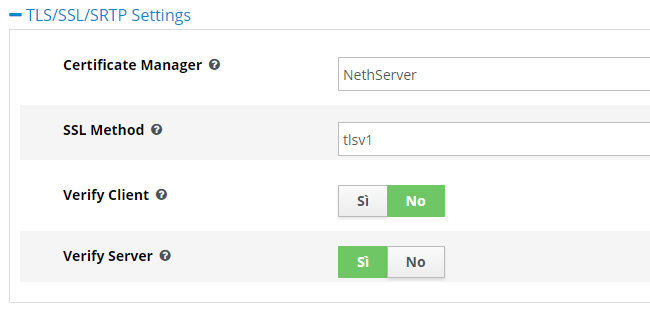
In the TLS/SSL/SRTP Settings section, you have to configure as shown in this image:
After that, click on Submit at the bottom of the page.
If this error is shown: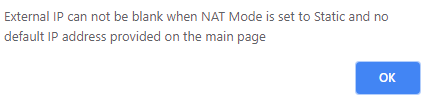
go to Settings -> Asterisk SIP Settings -> tab Chan SIP Settings, go to NAT Settings section and set the IP Configuration at Public IP, and then click on Submit again.
After that, click on the orange button Apply Config at the top-right of the page.
Finally, you have to restart Asterisk (attention, because all the calls will be terminated). The command for the restart is asterisk -rx "core restart now"
HOW TO CONFIGURE THE TLS EXTENSIONS
Every TLS extensions has to be created in the NethVoice wizard, as always.
Once the extension is created, you need to go to FreePBX interface, in the section Applications -> Extensions, and set these parameters in the extension:
